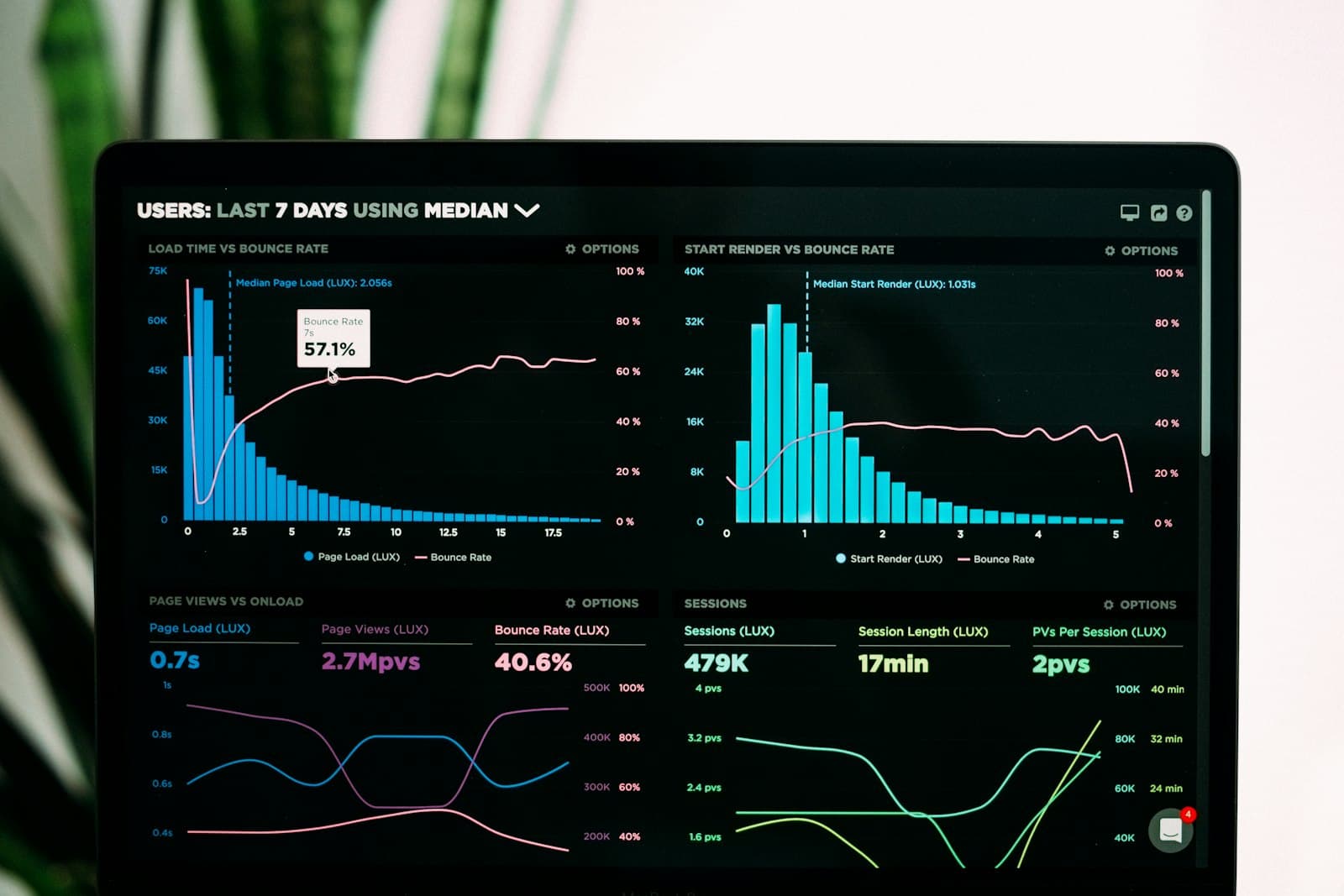
Bar charts and line charts are the right answer 80% of the time. Knowing what to reach for the other 20% is what separates an analyst from a designer of decisions.
Bar charts and line charts solve the visualization problem 80% of the time. They are easy to read, easy to build, hard to misinterpret, and almost always the right default. We say so repeatedly to clients who arrive convinced they need a custom visual. But the remaining 20% — the cases where a bar chart actively obscures the decision the executive is trying to make — is where dashboards stop being reporting and start being decision design.
This post is a short field guide to the advanced visualizations that earn their place in a Power BI report. Each section names the decision pattern the visualization supports, the situations where it is the right reach, and the failure modes when it is misapplied. The visuals listed are all available in standard Power BI plus the certified custom visual library — no exotic dependencies required.
Waterfall charts: when the question is 'where did the change come from?'
Waterfalls earn their place anywhere leadership is reconciling a starting balance to an ending balance and the components matter. Revenue movement from prior quarter to current. Headcount movement. Gross-to-net margin walk. Any conversation that includes the phrase 'what changed?' is a waterfall conversation. A grouped bar chart can technically display the same data, but the waterfall is the only visual that forces the reader's eye through the sequence of changes that produced the new total.
Where waterfalls fail
- Too many components — anything past 8-10 bars becomes unreadable
- Components that don't share units — currency mixed with counts breaks the metaphor
- Negative values that overwhelm the positive — the chart becomes hard to scan
- Used to show a single period instead of a movement between periods
Decomposition trees: when the question is 'why is this number what it is?'
Power BI's decomposition tree is one of the most underused visuals in the standard library. It turns a single headline number into an interactive drill-down across any dimension the user wants to explore. Used well, it replaces three pages of slicers and bar charts with one visual the executive can drive themselves. Used poorly, it becomes a maze the user gets lost inside and abandons.
The trick to making decomposition trees useful is constraining them. We expose 3-4 dimensions, not 15. We use the AI-driven 'high value / low value' splits sparingly because they can mislead on small populations. And we always pair the decomposition tree with a one-line interpretive caption — 'click any segment to see what drove it' — because users do not intuitively know that the visual is interactive.
Small multiples: when the question is 'how does this compare across slices?'
Small multiples — a grid of small charts each showing the same metric for a different slice — solve the comparison problem more honestly than overlaid lines. When leadership wants to compare 12 regions or 8 product lines side by side, the small-multiple grid lets the eye scan all of them quickly without the cognitive overhead of decoding a multi-color overlay.
Heatmaps: when the question is 'where is the concentration?'
Heatmaps shine in two cases. Calendar heatmaps for showing seasonality and daily patterns. And matrix heatmaps for showing concentration across two dimensions — region by product, channel by segment, day of week by hour of day. The visual makes hotspots and dead zones jump off the page in a way no table or bar chart can match.
Heatmap pitfalls
- Using a rainbow color scale — distorts the perception of magnitude
- Showing too many cells — the grid becomes a pixel cloud
- Failing to specify what the color encodes — magnitude, change, density, share?
- Mixing positive and negative values without a diverging scale
Sankey diagrams: when the question is 'where does the flow go?'
Sankey diagrams show movement between states. Lead source to deal outcome. Channel to converted segment. Onboarding stage to active vs. churned. The visual is dramatic and underused in B2B dashboards, where most of the questions about funnels and flows are still answered with stacked bar charts that hide the very thing the executive wanted to see.
Sankeys are easy to misuse. They become unreadable past 4-5 stages and break entirely when the flows are not actually conserved (i.e., when some units disappear or duplicate). We use them for genuinely conservative flows where every entity in column 1 lands in exactly one bucket in column N. If that property doesn't hold, the visual lies.
Bullet charts: when the question is 'are we on track?'
Bullet charts are the most efficient visualization in the entire BI vocabulary for the question 'are we on track?' One bar shows the actual. One target line shows the goal. A graded background shows the qualitative bands. The whole comparison fits in 40 vertical pixels and tells the executive everything they need to know in a glance. Most KPI tiles should be bullet charts; they are not, because the out-of-box tile assumes a single number with no comparison context.
When NOT to reach beyond the basics
- When the audience is going to consume the report on mobile
- When the report is being exported to PDF or PowerPoint regularly
- When the executive doesn't already trust the underlying numbers
- When a bar chart actually answers the question
- When the data is too sparse for the advanced visual to render meaningfully
- When you have not yet trained the audience on what the new visual means
The rule we use on every dashboard review
For every non-default visual on a dashboard, an analyst should be able to answer two questions in one sentence each: what decision does this visualization support, and would a bar chart support that decision better? If the answers aren't crisp, the visualization is decoration. Decoration in an executive dashboard is friction, not value-add.
“The right visualization is invisible — the executive reaches the decision so quickly they forget there was a chart in the way.”
The one-line takeaway
Reach beyond the bar chart only when the decision genuinely requires it. The advanced visuals — waterfall, decomposition tree, small multiples, heatmap, Sankey, bullet — each solve a specific decision pattern. Match the pattern, choose the visual; otherwise, the bar chart is doing more work than the fancy alternative.
Published March 12, 2026 · 10 min read